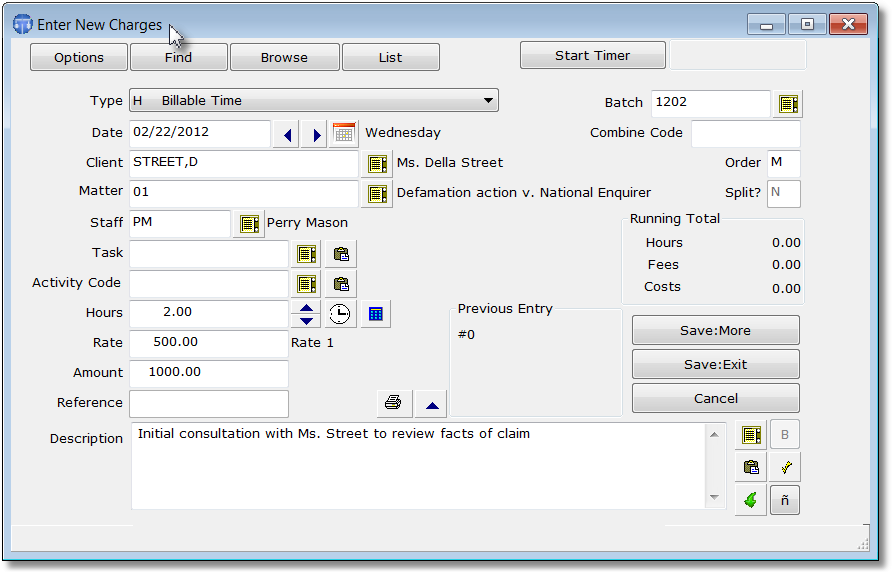
 Once you have opened a client and matter, you can enter charges for that file simply by clicking the New button in the Charges cluster on the Control Panel. This screen, shown above, is then used for entering any type of charge, including both billable and nonbillable time, flat fees, and billable and nonbillable costs. Once you have specified the type of transaction, the date, client and matter, staff member, and the number of hours, the program will calculate the dollar amount based on the rate assigned to the staff member for this case. You can then enter an unlimited amount of description. If desired, you can create a list of shorthand codes as abbreviations for commonly used words and phrases which are automatically expanded by the program. When you have finished entering the charge, click either Save:More to add more charges, or Save:Done if you are finished.
 Enter New Charges
Once you have opened a client and matter, you can enter charges for that file simply by clicking the New button in the Charges cluster on the Control Panel. This screen, shown above, is then used for entering any type of charge, including both billable and nonbillable time, flat fees, and billable and nonbillable costs. Once you have specified the type of transaction, the date, client and matter, staff member, and the number of hours, the program will calculate the dollar amount based on the rate assigned to the staff member for this case. You can then enter an unlimited amount of description. If desired, you can create a list of shorthand codes as abbreviations for commonly used words and phrases which are automatically expanded by the program. When you have finished entering the charge, click either Save:More to add more charges, or Save:Done if you are finished.